How To Install VMware Workstation 11 On Ubuntu 14.10
This new release supports the latest processors and hardware and the ability to connect to VMware’s VCloud Air.
With support for more than 200 operating systems, including Microsoft latest Windows 10 preview, VMware Workstation is a great tool to have if you’re an IT person. It also supports the latest Intel 64-bit and x86 processors including the new Haswell microarchitecture for maximum performance.
You can now create a virtual machine which supports up to 16 vCPU, 8 TB virtual disk and 64 GB memory to run the most demanding applications in your virtualized environment. There are more that are including in the release that are not mentioned above, including support for higher resolution displays like the new QHD+ used in most laptops today.
For more about this released, please visit this page.
- Installing VMware 11 On Ubuntu 14.10
The virtual or guest machines are the ones created from within VMware Workstation software.
To get started, open the command console and run the commands below.
sudo apt-get update && sudo apt-get dist-upgrade && sudo apt-get autoremoveThe commands above updates Ubuntu and remove unwanted packages including old kernel modules.
Next, run the commands below to install required packages for VMware to function on Ubuntu.
sudo apt-get install build-essential linux-headers-`uname -r`After that, go and download version 11 of VMware workstation. You must have an account with VMware in order to get it.
https://my.vmware.com/web/vmware/details?downloadGroup=WKST-1100-LX&productId=462&rPId=7183
Once you download it, most likely in your ~/Downloads folder, run the commands below to install it.
cd ~/DownloadsNext, extract or unzip the downloaded content by running the commands below if you downloaded the .zip archive.
unzip VMware-Workstation-Full*.zipIf you did not download the zipped archive, then run the commands below to make the installer executable.
chmod +x VMware-Workstation-Full*.bundleNext, run the commands below to begin the installation
sudo ./VMware-Workstation-Full*.bundleYou should then see WMware’s installation wizard to complete the installation.

Accept the license agreement to continue.
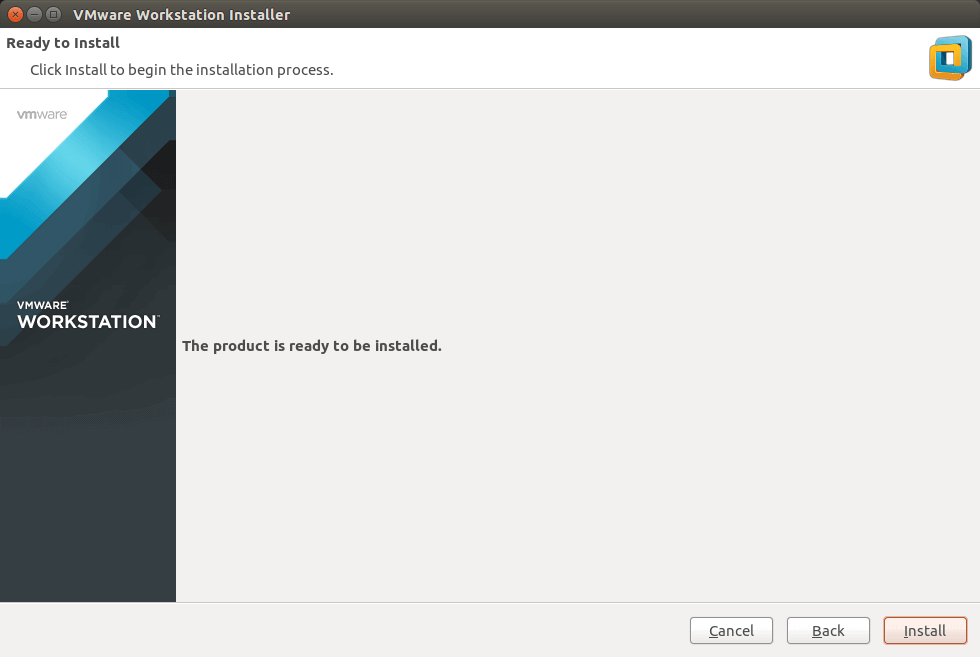
Follow the wizard and accept the defaults until you’re done. At the end of the wizard, click Install to install.
After installing, go to Unity Dash and launch VMware workstation
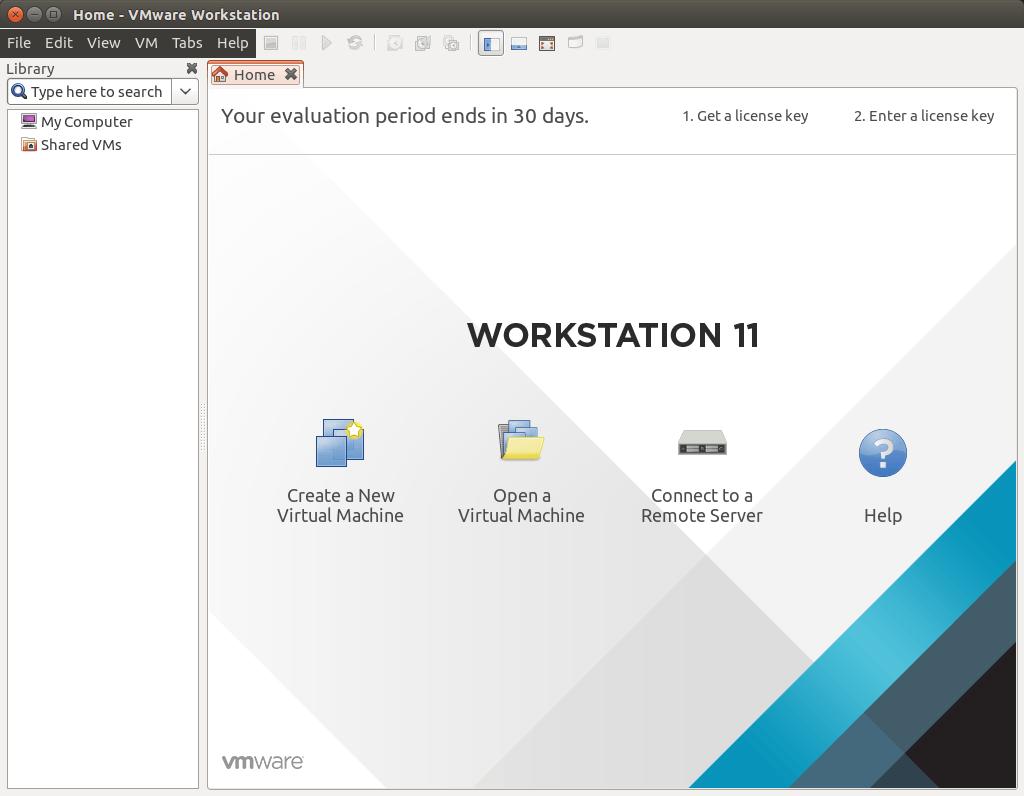
That’s it!
source : http://www.liberiangeek.net/2014/12/install-vmware-workstation-11-ubuntu-14-10/


0 komentar:
Posting Komentar